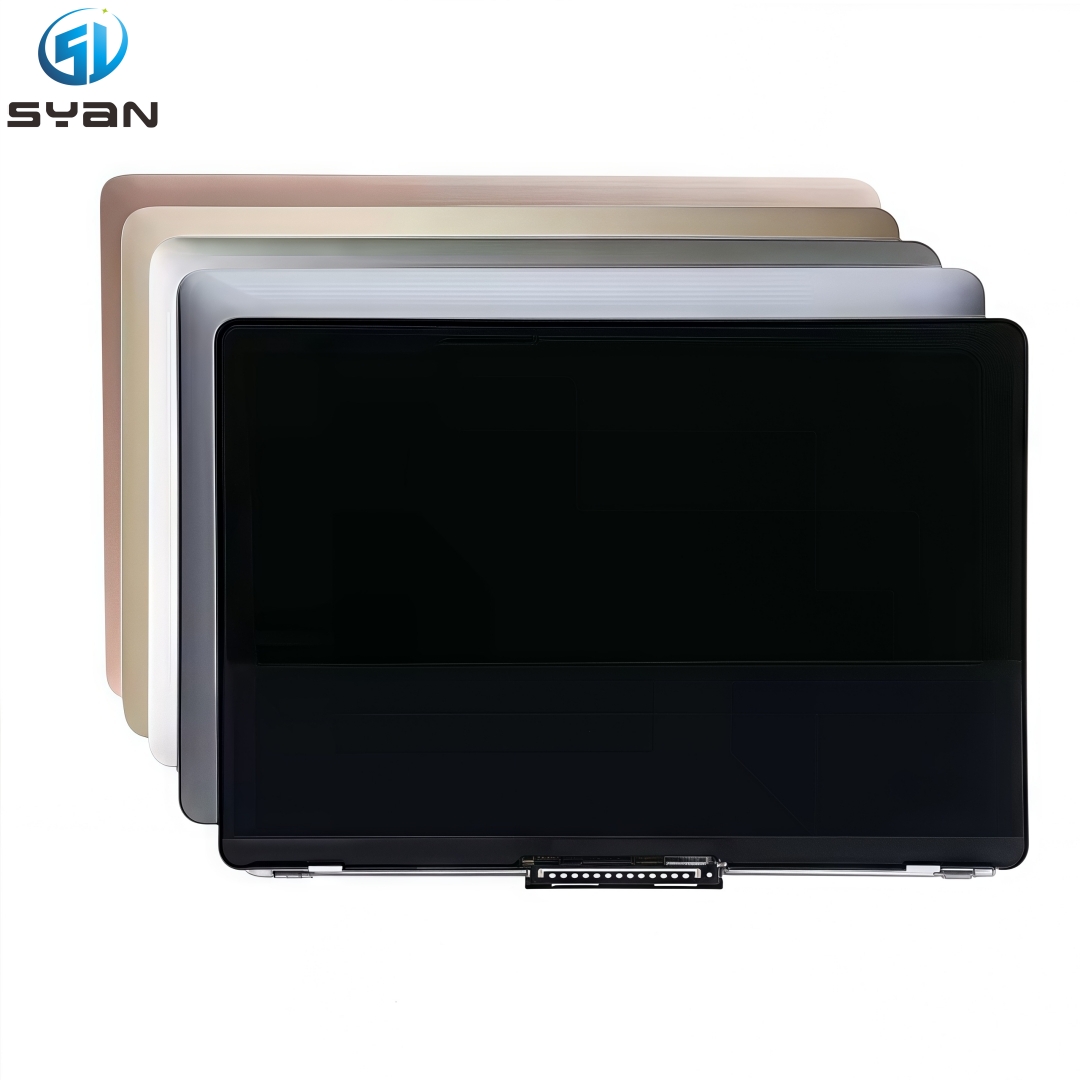
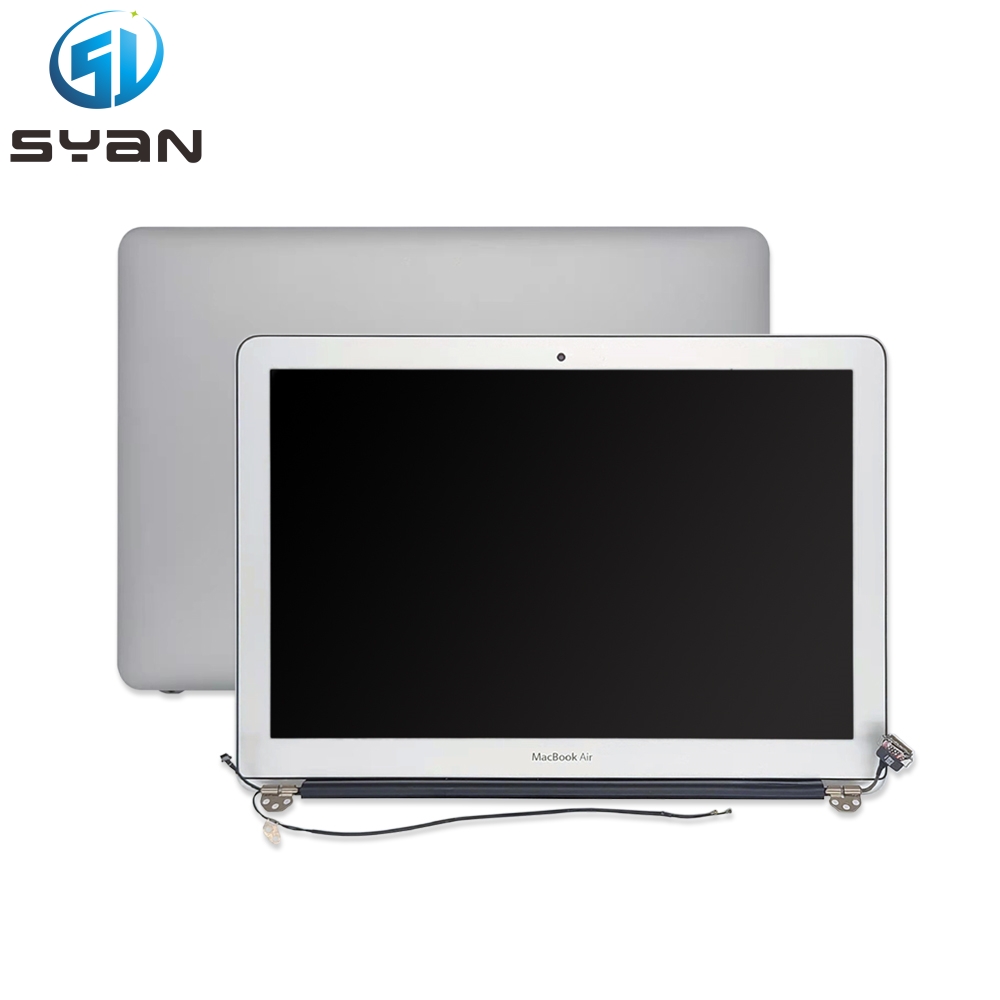
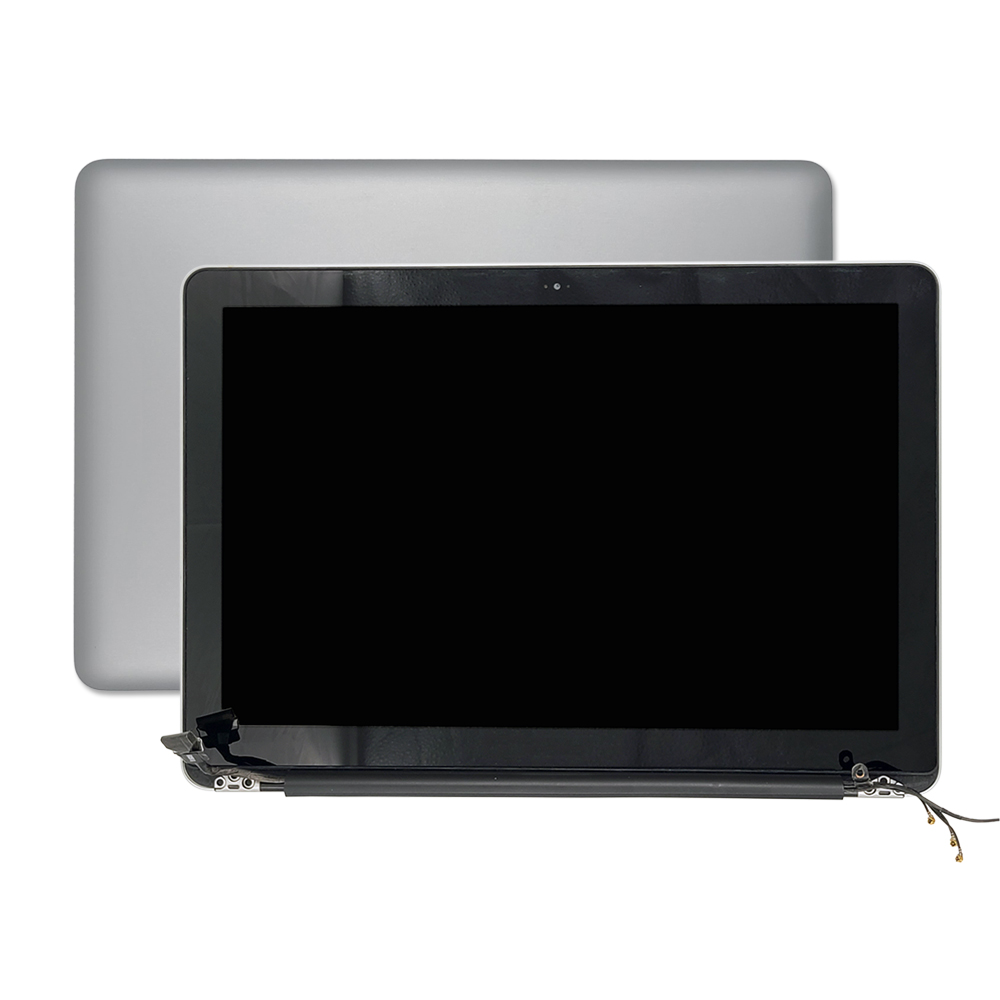
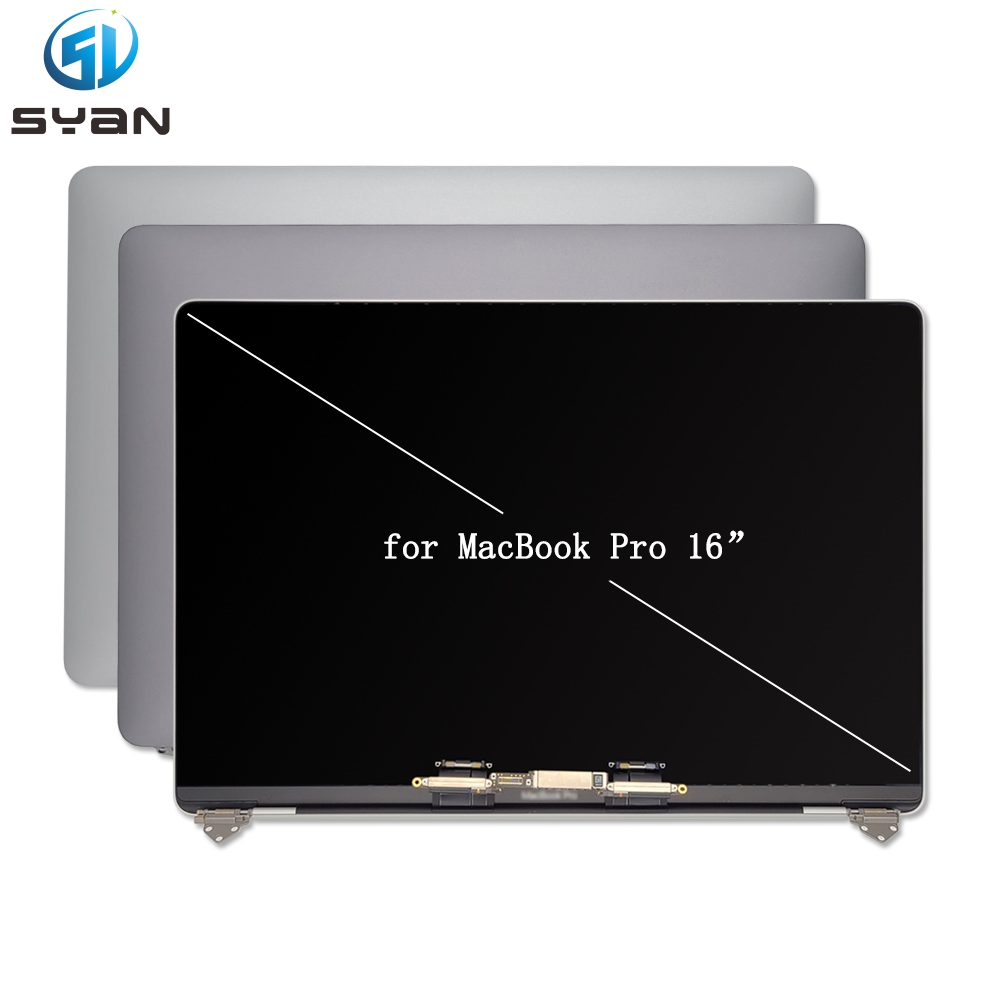
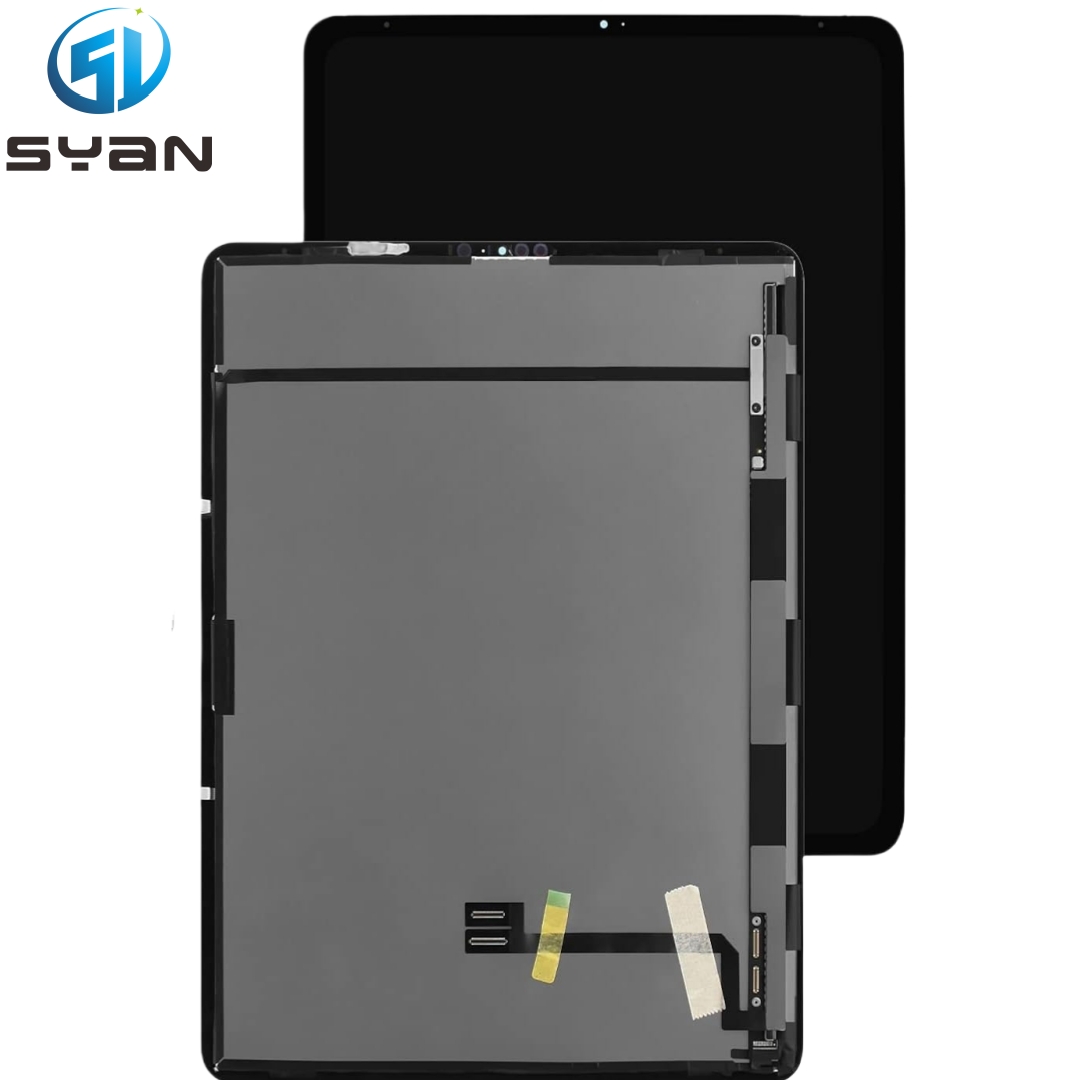
Step-by-step Guide: LCD Assembly Replacement
This tutorial covers Apple Silicon models. It is optimized for Google SEO with clear lists and notes for DIY repair.
Required Parts & Guidelines
- Tools: Non-conductive anti-scratch suction cup, plastic pry tool, Torx/Torx Plus screwdrivers, isopropyl alcohol, and a lint-free microfiber cloth.
- Preparation: Back up all data via Time Machine or iCloud. Shut down, unplug the charger, and hold the power button for 10 seconds to discharge residual electricity.
- Safety: Use an anti-static mat and wrist strap to prevent static damage. Work on a soft surface to avoid scratching the aluminum casing.
Step 1: Remove the Bottom Case
- Place the MacBook upside down on a soft cloth.
- Remove the 10 bottom case screws. Note: Screws near the hinge are longer; keep them organized by location.
- Insert a pry tool into the seam along the edges to release the clips and remove the bottom case.
Step 2: Disconnect the Battery (Mandatory)
- Locate the battery connector (often marked with a warning symbol).
- Use a plastic pry tool to pry the battery connector straight up. Do not twist or bend the pins to avoid logic board damage.
Step 3: Disconnect Display Cables
- Remove the screws securing the display connector cowlings and store them safely.
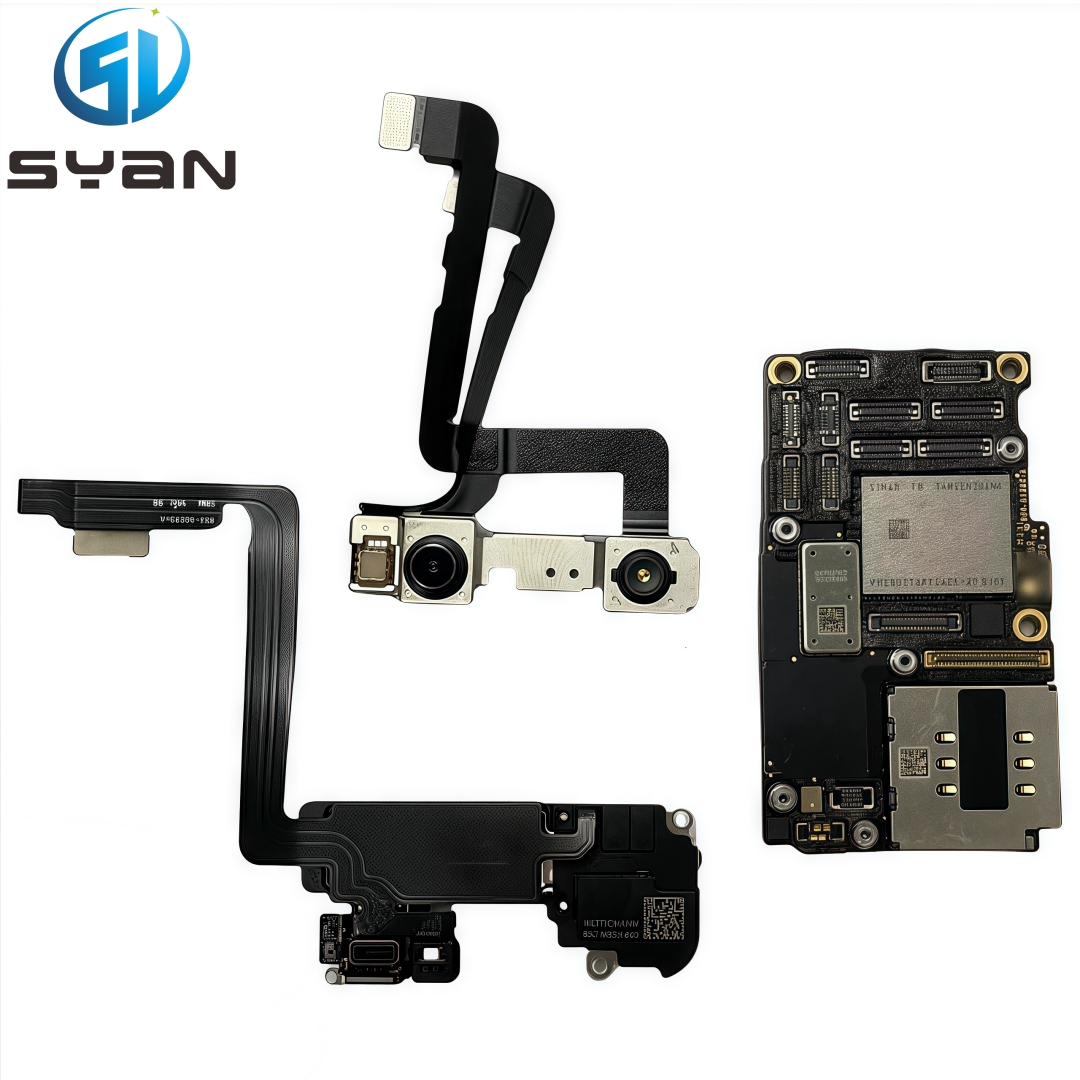
- Disconnect the ends of the three main connectors: Power, FaceTime HD, and Embedded DisplayPort (eDP).
- Release the cables from any internal adhesive, fold them back gently, and set them aside.
Step 4: Remove the Old Display Assembly
- Open the MacBook to 90 degrees and lay it keyboard-side down on the edge of a table so the screen hangs freely downward.
- Support the screen with one hand. Use a Torx Plus driver to remove the screws (3 per hinge) securing the hinges to the frame.
- Slowly close the screen to a 30-degree angle, lift the left side first, then the right, and pull forward gently to separate it completely.
Step 5: Install the New Display
- Carefully feed the new display cables through the recess area, avoiding twisting or bending the hinges.
- Lower the hinges into place, align the screw holes, and install the hinge screws (torque to 8-1.0 Nm, do not over-tighten).
- Route the flex cables and firmly press the eDP, camera, and backlight connectors into the logic board.
- Reinstall the two display connector cowlings over the cables.
- Place the lid angle sensor in position and secure its cowling with screws.
Step 6: Reconnect Battery & Test the Display
- Reconnect the battery: Align the battery connector pins and press down firmly until it clicks into place.
- Test the display:
- Reconnect the charger and power on the MacBook.
- Verify: screen brightness, color accuracy, camera function, True Tone, and auto-brightness.
- If issues occur, power off and recheck cable connections (especially the eDP cable).
Step 7: Reassemble the MacBook
- Install the bottom case: Align the clips, press the case into place, and reinstall the 10 bottom screws (match screw lengths to original positions).
- Run Repair Assistant (Apple Silicon only): After reassembly, follow on-screen prompts to run Repair Assistant (required to calibrate the new display and restore full functionality).
Post-Repair Tips & Troubleshooting
Tips
- Use only genuine or high-quality OEM display assemblies for A3112/A3185/A3401 to avoid compatibility issues.
- Keep all screws organized by location and length to prevent loss or misinstallation.
- Clean the display and camera lens with a lint-free cloth and isopropyl alcohol after installation.
Common Issues
- No display: Recheck the eDP cable connection; ensure the battery is fully reconnected.
- Dim backlight: Verify the backlight power cable is seated correctly.
- Camera not working: Reconnect the FaceTime camera flex cable firmly.
- True Tone missing: Ensure the lid angle sensor is replaced and Repair Assistant is run.