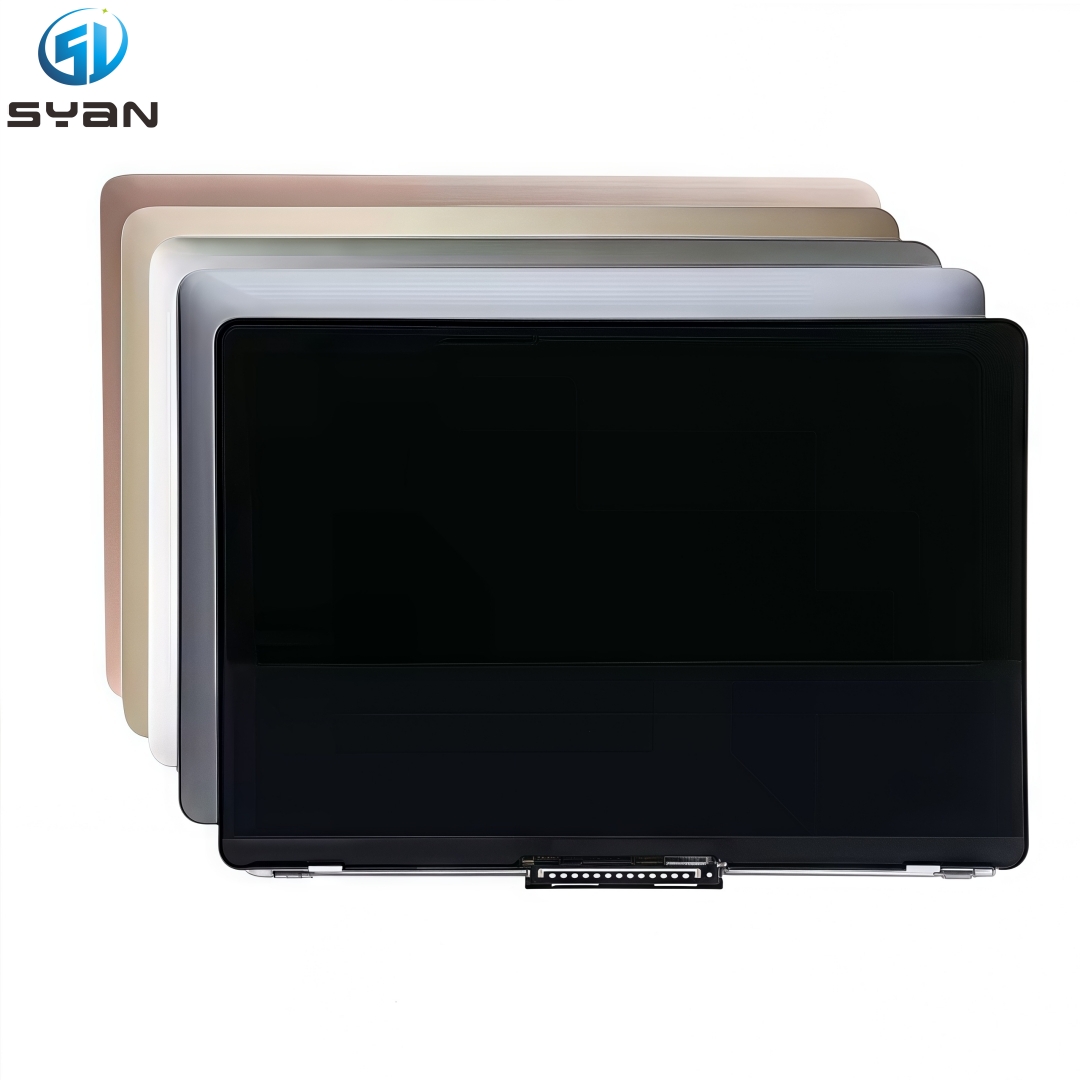
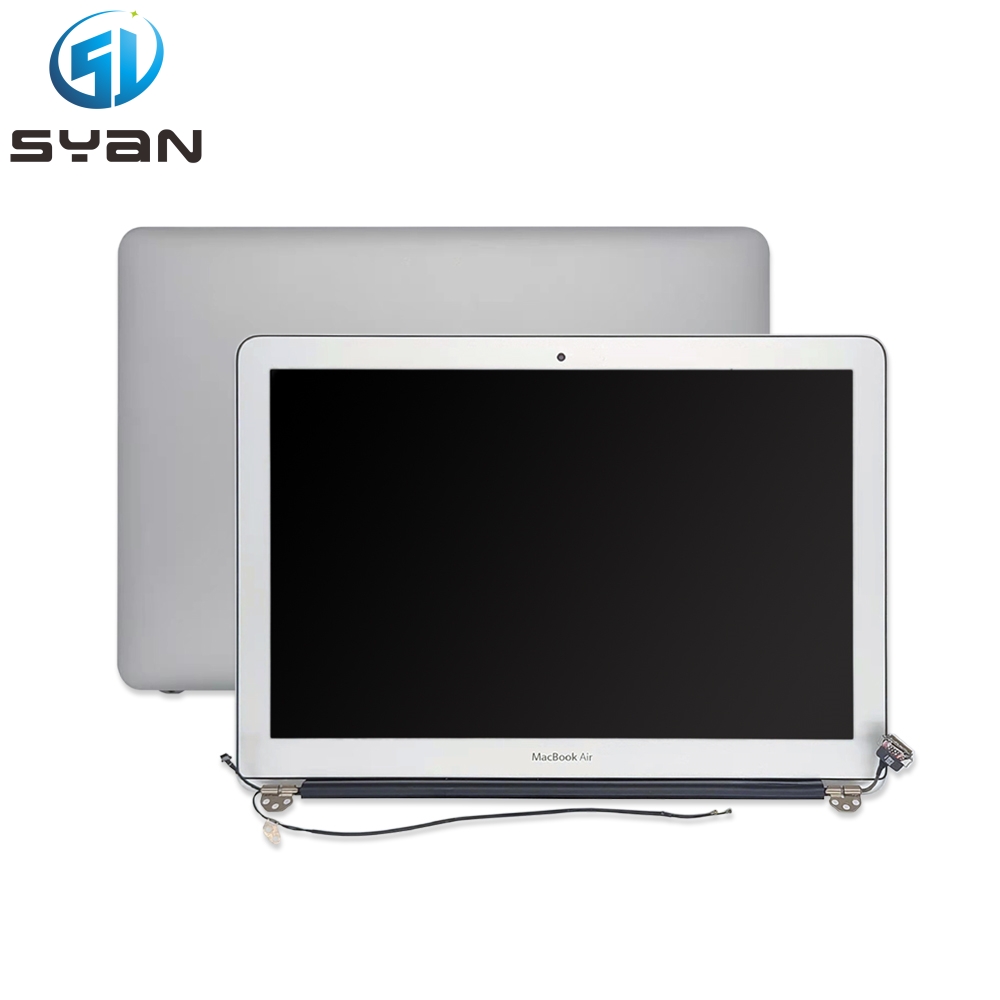
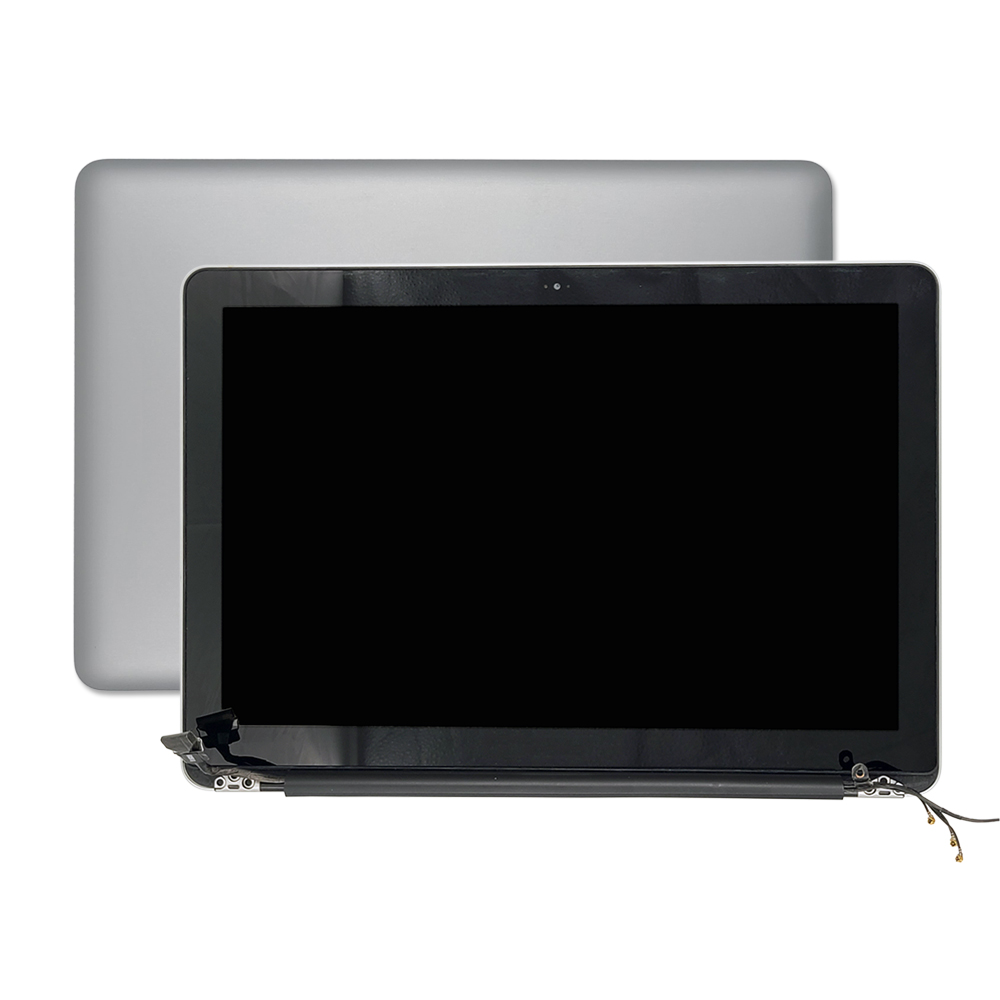
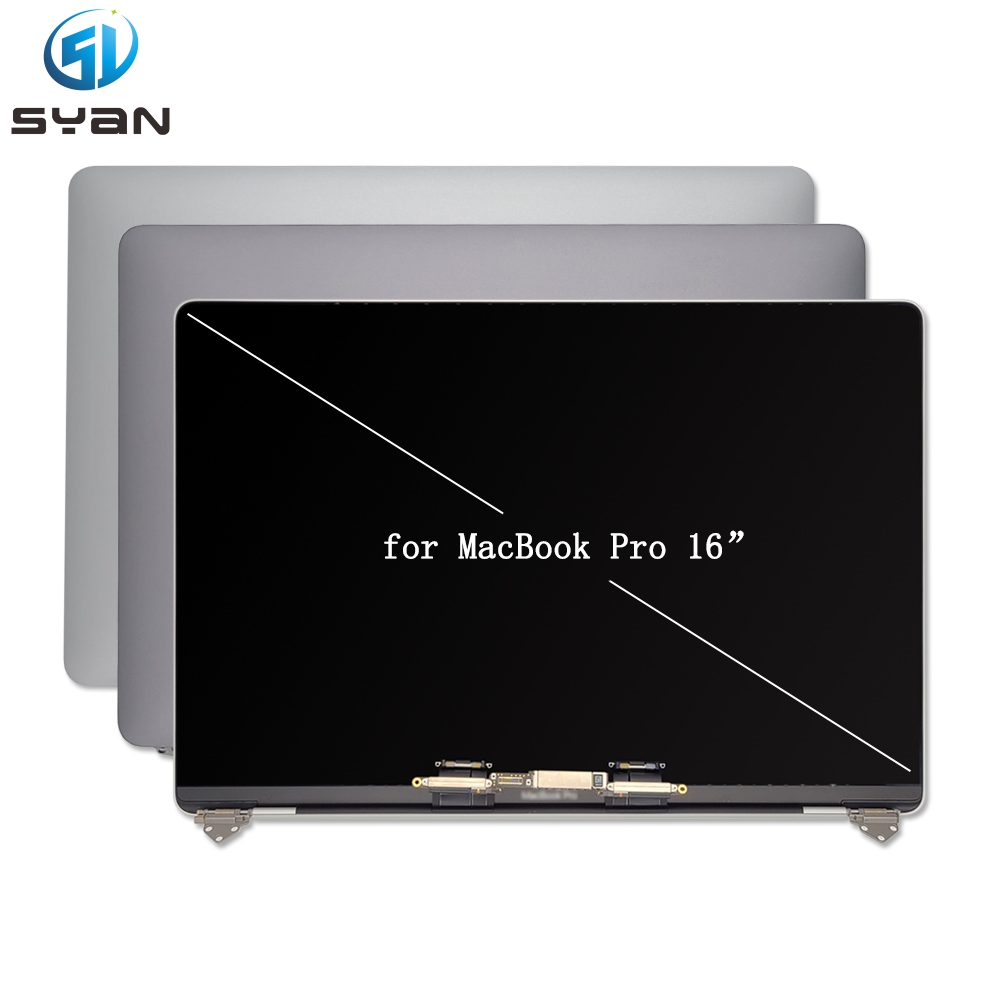
How to Replace the Display Assembly on MacBook Pro 14-inch (A3112, M4, 2024)
Replacing the display assembly on your MacBook Pro 14-inch (model A3112, M4, 2024) fixes issues like a cracked screen, flickering backlight, unresponsive camera, or distorted graphics. This SEO-optimized, step-by-step guide provides clear instructions, tool lists, safety tips, and official specifications to help you complete the repair safely and successfully.
Key Specs & Pre-Repair Info
Compatible Model: MacBook Pro 14-inch (M4 Pro/Max, 2024, Model Identifier: A3112)
Critical Requirement: A new lid angle sensor is mandatory for display replacement (per Apple guidelines)Apple Support.
Display Features: Retina XDR, 3024 x 1964 resolution, mini-LED backlight, integrated FaceTime HD camera.
Tools & Parts You’ll Need
Essential Tools
P5 Pentalobe screwdriver (for bottom case)
Blue torque screwdriver (3IP Torx Plus bit, 0.3–1.2 Nm)
8IP Torx Plus screwdriver (for hinge screws)
Nylon pry tool (anti-static “black stick”)
Anti-static wrist strap & ESD mat
Magnetic screw mat (organize small screws)
Lint-free microfiber cloth
Isopropyl alcohol (for cleaning)
Replacement Parts
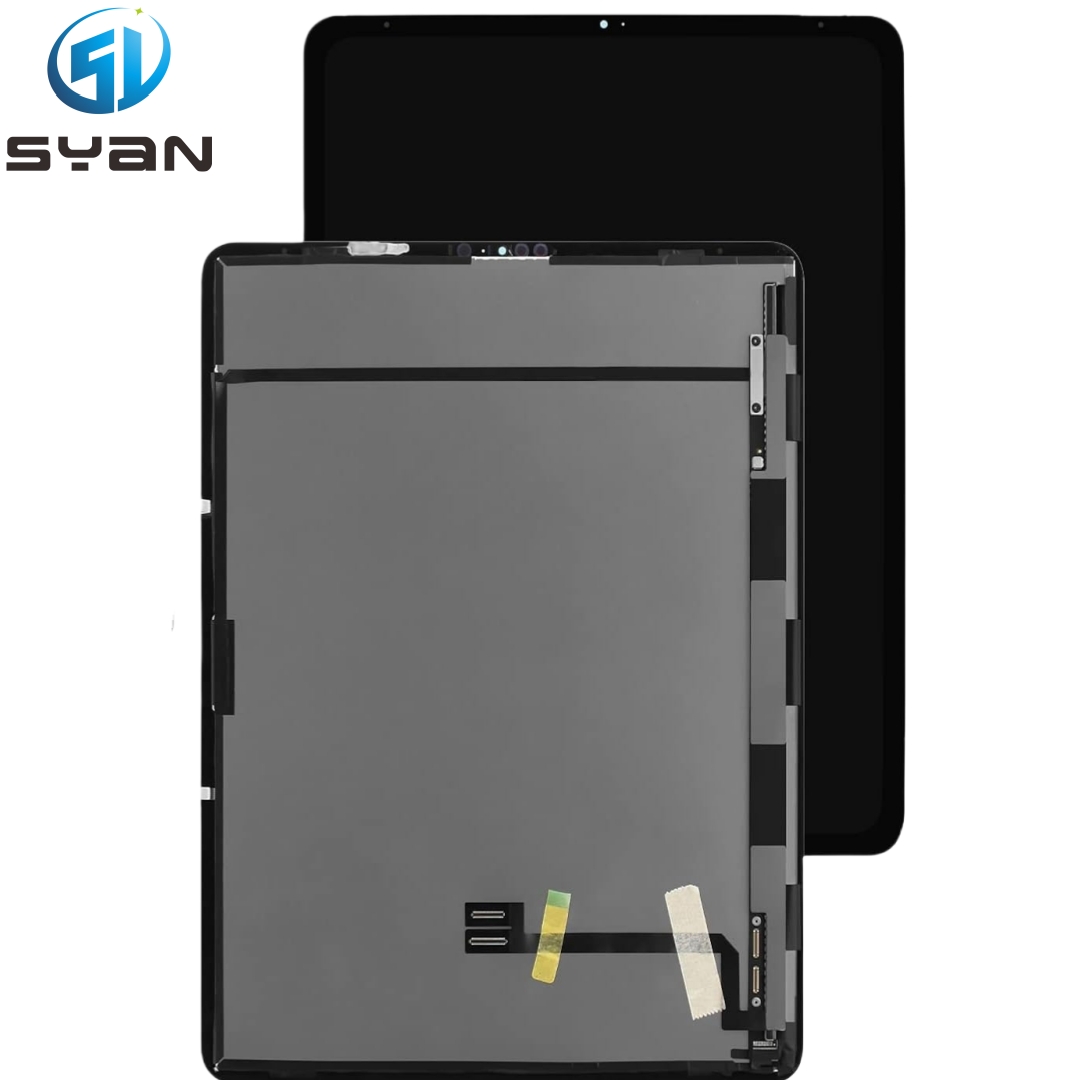
MacBook Pro 14-inch (A3112/M4) complete display assembly (with lid)
Replacement lid angle sensor (required)Apple Support
Adhesive strips (if needed for reassembly)
Safety Precautions (Non-Negotiable)
Battery Drain: Ensure battery charge is below 10% before starting—reduces fire risk if the battery is puncturedApple Support.
Anti-Static Protection: Wear an anti-static wrist strap and work on a grounded ESD mat to avoid logic board damage.
Full Power Down: Shut down the MacBook, unplug MagSafe, and disconnect all peripherals (USB-C, HDMI, etc.).
Cable Care: Display flex cables are extremely fragile—never pull, bend, or twist them forcefully.
Step 1: Remove the Bottom Case
Place the MacBook face-down on a soft microfiber cloth to avoid scratching the lid.
Use a P5 Pentalobe screwdriver to remove the 8 bottom case screws (4 long, 4 short—note positions for reassembly).
Gently lift the bottom case from the edge and remove it completely. Set it aside.
Step 2: Disconnect the Battery (Critical!)
Locate the battery connector on the left side of the logic board (near the fan).
Use a nylon pry tool to lift the battery connector straight up (do not twist or bend pins).
This cuts power to the logic board, eliminating short-circuit risks during display removal.
Step 3: Remove the Lid Angle Sensor Cowling
Locate the lid angle sensor connector (left side, near the display hinge).
Use the blue torque screwdriver (3IP bit) to remove 2x 3IP screws from the sensor’s metal cowlingApple Support.
Lift the cowling and set it aside with the screws.
Step 4: Disconnect the Lid Angle Sensor Cable
Use the flat end of the nylon pry tool to lift the sensor flex cable straight up from the logic board connectorApple Support.
Do not pull sideways—this can damage the connector pins.
Step 5: Remove Display Connector Cowlings
Locate the two metal display connector cowlings covering the display flex cables (center of the logic board).
Use the blue torque screwdriver (3IP bit) to remove 4x 3IP screws (2 per cowling)Apple Support.
Lift both cowlings off and set them aside with the screws.
Step 6: Disconnect Display Flex Cables
Three fragile flex cables connect the display to the logic boardApple Support:
Backlight power cable (1)
FaceTime HD camera cable (2)
eDP display data cable (3)
Use the nylon pry tool to lift each cable connector straight up (one at a time—never pull sideways).
Step 7: Release Display Cable Clips & Buffers
Lift the plastic cable clips off the internal frame of the top case.
Gently fold the clips back over the edge of the top case to reveal the rubber cable bumpers underneathApple Support.
Remove the bumpers and set them aside (reuse during reassembly).
⚠️ Note: The two bumpers are different—mark their positions for correct reinstallationApple Support.
Step 8: Remove Display Hinge Screws
Fully open the display (180°) and place the MacBook face-down with the display hanging over the edge of the work surfaceApple Support.
Use the 8IP Torx Plus screwdriver to remove 6x 8IP screws (3 per hinge) securing the display assembly to the top caseApple Support.
Keep screws organized—left and right hinge screws are identical.
Step 9: Lift & Remove the Old Display Assembly
With all cables disconnected and hinge screws removed, grip the display lid firmly (one hand on each side).
Pull the display toward you about 30 degrees, then lift it straight up and away from the top case—ensure no cables are caughtApple Support.
Set the old display aside (recycle per e-waste guidelines if replacing).
Step 10: Install the New Display Assembly
Align the new display assembly with the top case hinges—lower it gently into place.
Reinstall the 6x 8IP hinge screws (torque to 0.7–0.9 Nm—do not over-tighten, which can strip threads)Apple Support.
Reconnect the lid angle sensor flex cable and secure its cowling with the 2x 3IP screws.
Step 11: Reinstall Display Cable Buffers & Clips
Reinsert the rubber cable bumpers into the top case frame (match original positions—thicker padding side down for the camera/eDP bumper)Apple Support.
Fold the plastic cable clips back into place over the bumpers, pressing them down to secure.
Step 12: Reconnect Display Flex Cables
Align the three display flex cables (backlight, camera, eDP) with their logic board connectors.
Press each cable connector firmly straight down until it clicks into place—ensure full seating (no gaps)Apple Support.
Verify all cables are secure and not twisted or pinched.
Step 13: Secure Display Connector Cowlings
Place the two metal display connector cowlings back over the flex cables.
Reinstall the 4x 3IP screws (torque to 0.5–0.7 Nm) to secure the cowlingsApple Support.
Step 14: Reconnect the Battery
Align the battery connector with its logic board socket.
Press firmly down until it clicks into place—ensure a secure connection (no wiggling).
Step 15: Test the New Display (Critical Before Final Assembly)
Plug in the MagSafe charger and power on the MacBook.
Verify these key functions:
Display: No flickering, dead pixels, or discoloration; full brightness control.
Camera: FaceTime HD camera works (test via Photo Booth).
Sensors: Lid angle sensor functions (screen sleeps/wakes when closing/opening the lid).
If issues arise, power off and recheck cable connections (most problems stem from loose flex cables).
Step 16: Reinstall the Bottom Case
Align the bottom case with the top case edges—press firmly to snap into place.
Reinstall the 8 Pentalobe screws (match long/short screw positions from removal).
Torque screws to 0.4–0.6 Nm—avoid over-tightening (can crack the bottom case).
Post-Repair: Run Apple Repair Assistant (Mandatory)
After replacing the display, run Apple Repair Assistant to calibrate the new display and sync the lid angle sensorApple Support:
Connect the MacBook to the internet (Wi-Fi or Ethernet).
Go to System Settings > General > About > Repair Assistant.
Follow on-screen prompts to complete configuration (takes 5–10 minutes).
Troubleshooting Common Issues
表格
Problem
Likely Cause
Fix
Black screen (no display)
Loose eDP flex cable
Re-seat eDP cable firmly
Flickering backlight
Unsecured backlight cable
Reconnect backlight cable & check cowling
Camera not detected
Disconnected camera cable
Re-seat camera flex cable
Lid sleep/wake fails
Faulty lid angle sensor
Replace sensor & re-run Repair Assistant
Dim display (no XDR)
Incorrect cable seating
Recheck all three display flex cables
SEO Keywords for Google Visibility
MacBook Pro 14-inch A3112 display replacement
How to fix cracked screen MacBook Pro 14 M4
MacBook Pro A3112 screen assembly repair
Replace display MacBook Pro 14 2024 step-by-step
MacBook Pro M4 14-inch lid angle sensor replacement