MacBook Pro 16" A2780 M2 Trackpad Replacement Guide: Compatibility, Colors & Force Touch
A failing trackpad on the MacBook Pro 16‑inch M2 (A2780) is a common repair issue. Typical symptoms include unresponsive Force Touch, ghost touch, cursor glitches, no click feedback, intermittent trackpad detection, or gestures not working.
If you need a replacement Force Touch trackpad for this model, this guide covers compatible identifiers, available colors, key details and a step‑by‑step DIY replacement tutorial.
Compatible Model Information
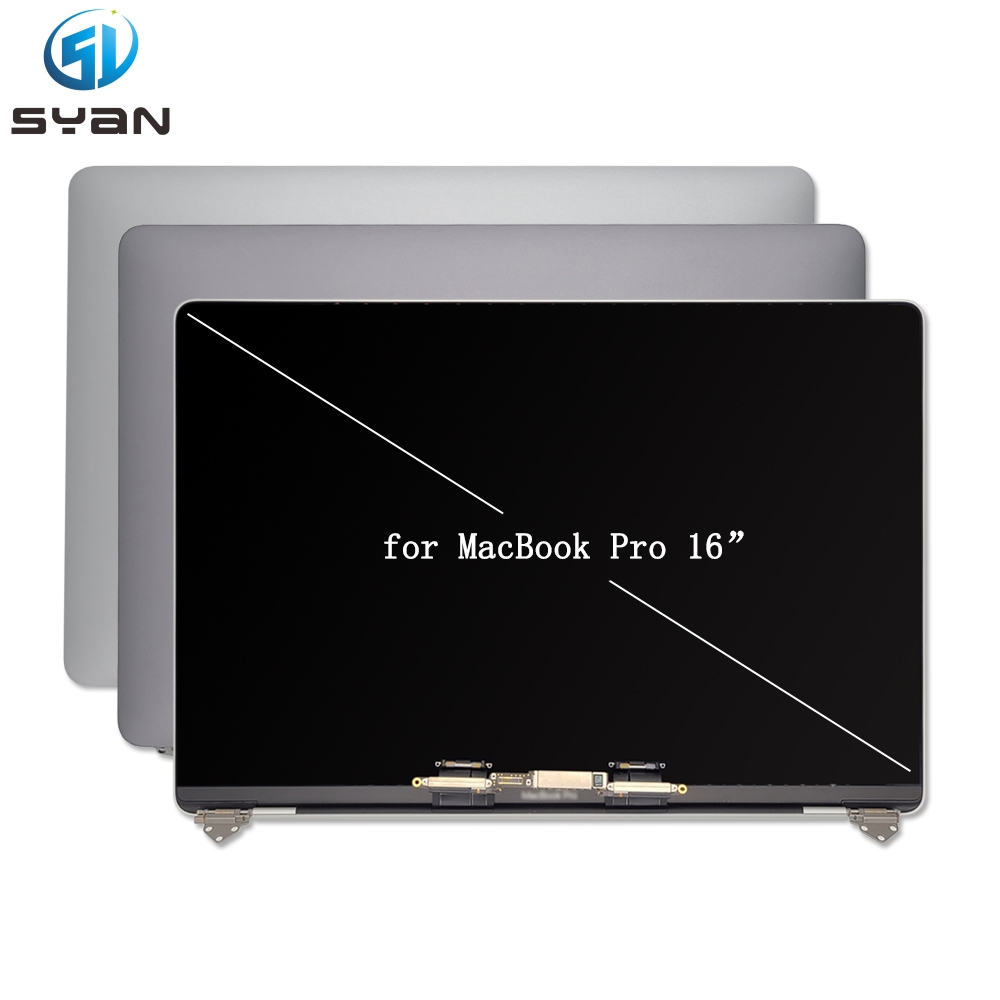
This Force Touch trackpad is designed for the 16‑inch MacBook Pro with M2 chip, released in 2023.
- Model Number: A2780
- EMC: EMC 8103
- Part numbers / SKUs: MNW83, MNWA3
- Screen: 16‑inch Liquid Retina XDR Display
Important compatibility note: This trackpad fits only A2780. It is not interchangeable with A2485, A2991 or other MacBook Pro generations. Always verify the model number printed on the bottom case before ordering a replacement part.
Original Factory Color Options
The A2780 trackpad matches the two official chassis colors for this MacBook Pro:
Both color versions use identical Force Touch hardware, sensors and connectors. Performance, haptic feedback and touch sensitivity are exactly the same. Match the color to your laptop for a seamless original look.
About Force Touch Function
This is a full Force Touch trackpad assembly. It supports pressure‑sensitive clicking, haptic feedback, multi‑finger gestures, tap‑to‑click and all native macOS trackpad features.
Common reasons to replace the trackpad assembly:
- No haptic feedback when pressing
- Random ghost touch or cursor jumping
- Trackpad clicks do not register
- Trackpad only works occasionally
- Physical crack, liquid corrosion or visible damage
- macOS cannot detect the trackpad
Tools You Will Need
- Pentalobe screwdriver set
- Phillips screwdrivers
- Plastic spudger / opening picks
- Anti‑static tweezers
- ESD wrist strap (strongly recommended to protect the logic board)
Step‑by‑Step Replacement Instructions
- Fully shut down the MacBook Pro and disconnect all power and external peripherals.
- Remove all bottom Pentalobe screws. Use a plastic pry tool to lift the lower case carefully; avoid metal tools that can scratch the enclosure or short components.
- Disconnect the battery flex cable first. This safety step prevents short circuits while working inside the machine.
- Locate the trackpad flex cable connector on the logic board. Lift the connector latch gently and pull the cable straight out. Do not fold or nick the thin flex circuit.
- Unscrew the mounting screws holding the old trackpad assembly, then lift it out.
- Position the new A2780 Force Touch trackpad, secure its mounting screws.
- Reinsert the trackpad flex cable and lock the connector latch securely.
- Reconnect the battery cable, fit the bottom case back in place and power on the laptop.
- Test all functions: normal click, Force Touch pressure click, tap‑to‑click, two‑finger scroll, zoom and multi‑finger gestures.
FAQ
Q: Are silver and space gray A2780 trackpads the same internally?
A: Yes. Only the outer finish differs. All electrical and touch functions are identical.
Q: Can I swap an A2485 trackpad into an A2780?
A: No. The form factor, mounting layout and connector are different; they are not compatible.
Q: Do I need special calibration after installing the new trackpad?
A: Usually not. macOS automatically recognizes the Force Touch trackpad once installed correctly.
Final Repair Tip