MacBook Air 13” A1466 Trackpad Replacement Guide: Compatible Years, Part Numbers & Repair Tips
1. Common A1466 Trackpad Issues
The MacBook Air 13-inch A1466 is one of Apple’s most classic and long-lasting models. After years of use, the trackpad often develops common problems such as trackpad not working, no click response, cursor freezing, intermittent failure, unresponsive gestures, and ghost touching. Most of these issues are caused by aging trackpad hardware or a worn internal flex cable.
If you are looking for a compatible replacement trackpad for your MacBook Air A1466, this complete guide covers compatible production years, official part numbers, available colors, and a step-by-step replacement tutorial to help you fix trackpad issues perfectly.
2. Exact Compatible Years & Models
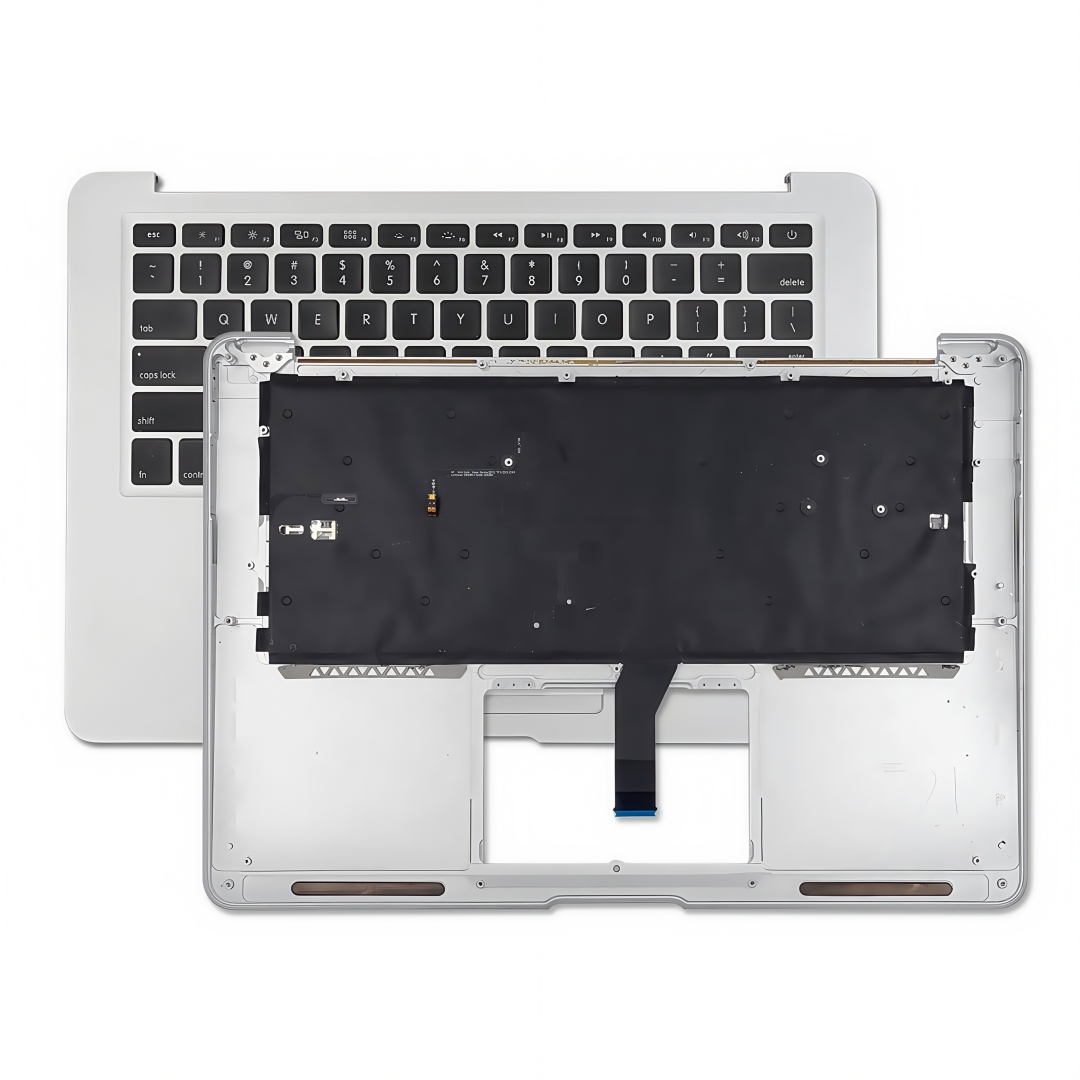
The A1466 trackpad is exclusively designed for the 13-inch MacBook Air released from 2013 to 2017. All versions in this lineup are fully interchangeable with each other.
Full Compatible Year List:
-
MacBook Air 13” A1466 – Mid 2013
-
MacBook Air 13” A1466 – Early 2014
-
MacBook Air 13” A1466 – Early 2015
-
MacBook Air 13” A1466 – Mid 2017
Important Compatibility Note: The A1466 trackpad does not fit the newer A1932, A2179, A2337, A2681 MacBook Air models. The size, connector position, and internal layout are completely different. Always confirm your bottom case model number before purchasing replacement parts.
3. A1466 Trackpad Colors & Appearance
The A1466 trackpad comes in two original factory colors to match the original MacBook Air chassis. Both colors share identical functions, sensors, and cable interfaces.
All A1466 trackpads support full multi-touch gestures, including tap to click, two-finger scroll, pinch to zoom, and three/four-finger mission control gestures. No function difference between different color options.
4. A1466 Official Trackpad & Flex Cable Part Numbers
The A1466 trackpad assembly has fixed OEM part numbers widely recognized in the repair industry. The matching trackpad flex cable ensures stable signal transmission and avoids after-repair failure.
Common OEM Part Numbers for A1466:
-
Trackpad Assembly: 922-9641, 922-9971, 001-02378
-
Trackpad Flex Cable: 821-1733-A, 821-00184-A
Using a trackpad with original standard part numbers eliminates common post-repair issues such as slow response, gesture failure, or trackpad not detected by macOS.
5. When You Need an A1466 Trackpad Replacement
Replace your A1466 trackpad or flex cable if you experience the following faults:
-
Trackpad cursor jumps randomly or moves by itself (ghost touch)
-
Physical click does not work or has no feedback
-
Trackpad works only when pressed hard
-
Multi-touch gestures fail or lag severely
-
Water damage, crack, scratch, or aging deformation
-
macOS fails to recognize the trackpad after boot
6. Step-by-Step A1466 Trackpad Replacement Guide
This DIY repair tutorial is suitable for beginners and professional repair stores. Follow standard anti-static operation to avoid hardware damage.
Required Repair Tools: Pentalobe screwdriver, Phillips screwdriver, plastic spudger, anti-static tweezers, opening pry tool
Step 1: Power off and open the bottom case
Completely shut down your MacBook Air A1466 and unplug all chargers and external devices. Unscrew all bottom Pentalobe screws, then gently pry and remove the lower case using a plastic spudger.
Step 2: Disconnect the battery cable
Always disconnect the battery flex cable first before touching internal components. This step effectively prevents short circuits and motherboard damage during trackpad replacement.
Step 3: Disconnect the trackpad flex cable
Locate the A1466 trackpad flex cable on the logic board. Flip up the plastic connector latch and pull the cable out flat. Do not bend or twist the thin flex cable to avoid breakage.
Step 4: Remove the old trackpad assembly
Unscrew all fixed trackpad screws, then lift and remove the original faulty trackpad from the upper case.
Step 5: Install the new A1466 trackpad
Place the new replacement trackpad in the correct position, fix all mounting screws, then reconnect the trackpad flex cable and lock the connector latch tightly.
Step 6: Reassemble and test functions
Reconnect the battery cable, reinstall the bottom cover, and power on the laptop. Test clicking, tapping, cursor movement, and all multi-touch gestures to confirm full functionality.
7. A1466 Trackpad Replacement FAQ
Q1: Are all A1466 trackpads universal for 2013–2017 models?
A1: Yes. All A1466 trackpads from 2013 to 2017 are fully plug-and-play interchangeable.
Q2: Can I replace only the flex cable instead of the whole trackpad?
A2: Yes. If the trackpad surface is intact, replacing only the damaged flex cable can fix most intermittent failure issues.
Q3: Will a different color trackpad affect system performance?
A3: No. Color only changes appearance and has no impact on touch sensitivity or gesture functions.
8. Final Repair Tips
The A1466 MacBook Air trackpad is a wear-prone component after long-term use. Choosing a high-quality standard replacement trackpad with correct OEM part numbers can completely resolve unresponsive touch, ghost touch, and click failure issues, restoring your laptop to full working condition.